

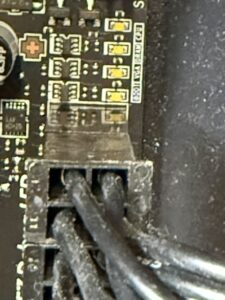
Last week a young customer brought his computer into one of my stores because he was flustered with his diagnostic. As many of my regular customers know, I frequently make suggestions over the phone before I have you bring in your computer.
With this customer it was no different. I could hear the frustration in his voice that his gaming computer wasn’t turning on as he expected. He told me there were little lights on the motherboard that moved around and flashed on and off, but one of them stayed lit. I suggested he take a picture of the little lights so he could reference it when the computer was posting (fancy speak for turning on).
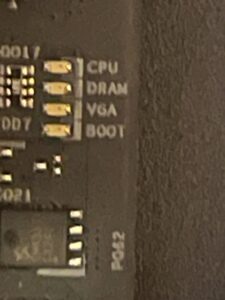
A picture is worth a thousand words. Next to each light the motherboard manufacturer prints the component that the LED light corresponds to. It’s nearly impossible to read when the light is on, but with the light off a good closeup picture allows us to easier match up the LED to the legend.
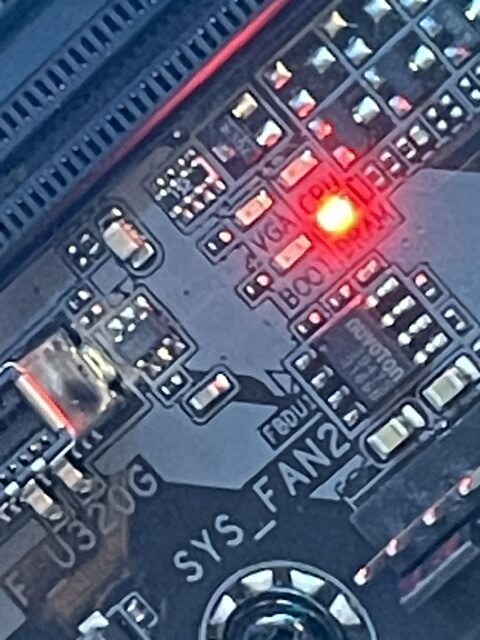
Over the years I have hundreds of pictures of diagnostic lights on my phone. I’m going to pepper some throughout the article so you can see what they look like. Most higher end motherboards used in gaming systems, CAD workstations and top end production computers come with diagnostic lights. Most of the time they’re on the lower right hand side; however, I’ve seen some crop up in different spots.
On a good working computer the lights go in a normal sequence of CPU, RAM, GPU and BOOT. It’s fairly normal the lights don’t trigger in a straightforward sequence though. Most of the time the lights will bounce between CPU and RAM a couple times before the GPU LED starts. This is because there are many checks between the processor and memory before the system BIOS or UEFI says everything passes.
A bad component on a motherboard will typically force the LED sequence to stop on the failed part. And this can be tricky because the CPU and RAM work in conjunction with each other. A failed GPU, for example, will halt on the GPU LED and keep it lit. This is so the user can see the issue and either change the graphics card, reseat it or connect it to power.
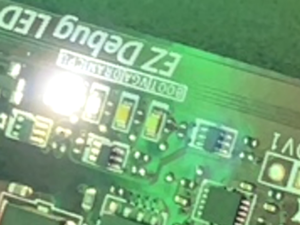
The lights will always halt and stay on when the motherboard detects a fault. Always. Even with the lights though, diagnosing a failed CPU may be beyond the scope of the capabilities of the LEDs. I have seen the lights stop on RAM when they should actually be on CPU. This is because the RAM and CPU are essentially tied together and work hand-in-hand.
Without a basic understanding of how the lights work, running basic diagnostics on a computer would be nearly impossible. Hopefully the next time you run into trouble the lights will make your job a little easier and may even save you a trip to see me.
Jeromy Patriquin is the President of Laptop & Computer Repair, Inc. with locations in Gardner and Greenfield MA